Timeline views
This content is not available in your language yet.
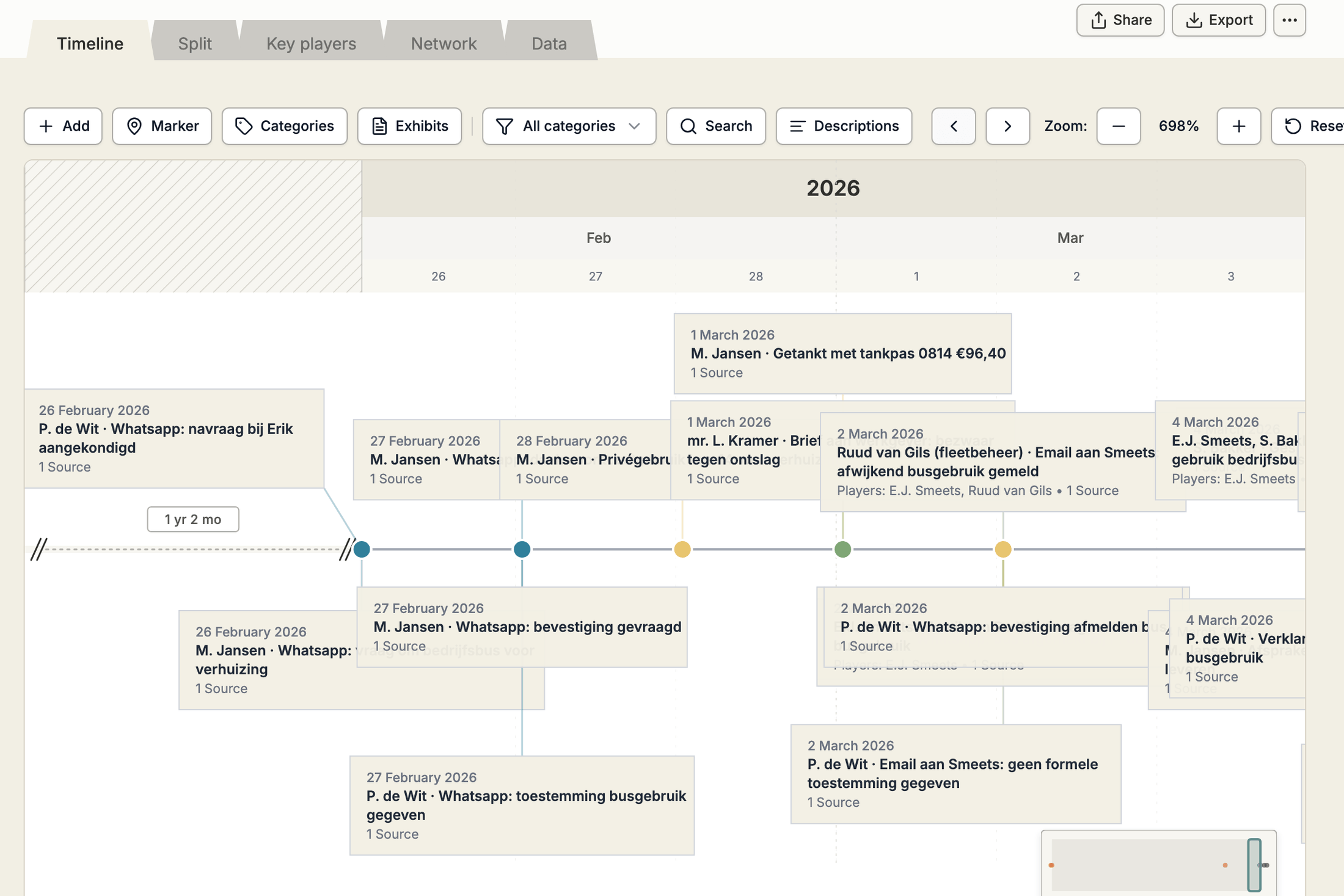
Thea shows the same events in several ways. Switch with the tabs above the timeline.
The tabs
Section titled “The tabs”- Timeline: the events on a time axis.
- Split: two parallel tracks, to compare two sides or themes.
- Key players: the people and organisations, grouped by side. See Players.
- Network: who is connected to whom. See Network view.
- Data: the underlying tables, to edit and export. See Data view.
Layouts in the Timeline tab
Section titled “Layouts in the Timeline tab”The Timeline tab opens in Unified: all events on one horizontal axis, coloured by category. In full screen (the expand button at the top right of the chart) you can switch layout:
- Rows: one row per category.
- List: the events as a vertical list.
Move around
Section titled “Move around”- Zoom: the minus and plus buttons, or Ctrl/⌘ + scroll or pinch. Reset goes back to the default zoom.
- Pan: scroll sideways, use the arrow buttons, or drag the window in the minimap below the chart.
- Skip quiet periods: shortens long stretches without events, so busy periods get more room. On by default.
- Descriptions: shows or hides the event descriptions on the cards.
Arrange the cards
Section titled “Arrange the cards”Click Arrange to drag event cards to a better spot, for example when labels overlap. Cards stay in date order. Double-click a moved card to release it, or click Reset layout to release all. Press Esc to stop arranging.